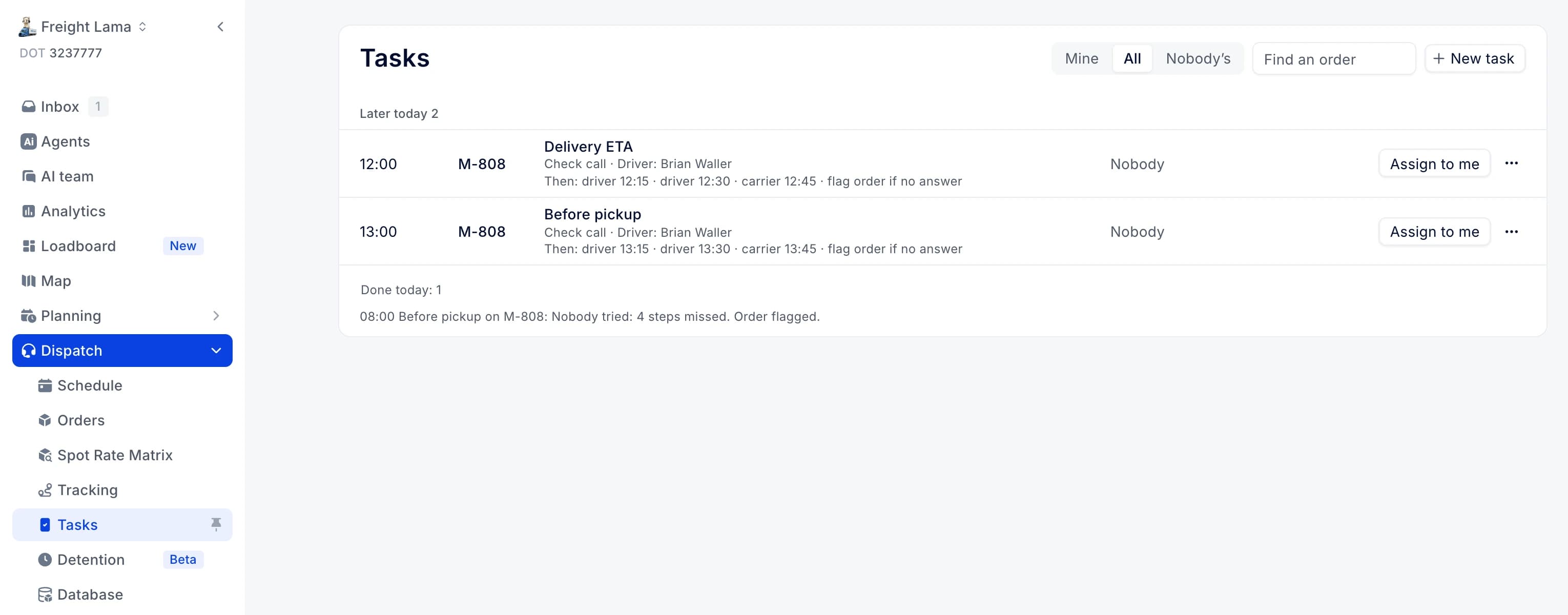
Why it helps
- One list for the day's follow-ups: every check call and document chase your task rules create, on every order, sorted into late, due now and later today.
- Nothing slips quietly: each task shows who is on it and what happens if nobody answers, such as flag order if no answer.
- Log the call right from the task: the Log call window shows the order's stops, contacts and a map next to the form.
- Every call you log is saved on the order's check calls, so the whole team sees the same history.
Open Tasks
Go to Dispatch › Tasks (Loads › Tasks in a broker's menu). On the Broker view of Orders, My tasks and Unassigned tasks show the same list.
Tasks are grouped into Late, Due now and Later today. Switch between Mine, All and Nobody’s to see your tasks, the whole team's, or the ones nobody has taken yet. Type an order number in Find an order to see only its tasks. Done today at the bottom lists what was closed today and how.
If the page says Task rules are off, click Open settings, turn the rules on and add some, for example with Start from a preset. You set rules once, and they plan the calls on every order they match.
Work a task
Click Assign to me to take a task, so the team knows you have it. When it is due, click Log call (Log attempt on a document chase, Mark done on a task you close by hand).
 Take a task, or hand it on from the … menu
The … menu on each task has Assign to… to hand it to a teammate, Take over for a task someone else holds, Not needed to close just this task, Turn off on this order to stop that rule on one order, and Open rule.
Log a call
The Log call window shows the order's stops, appointments, ETA and contacts on the left, the form in the middle and a map with the earlier check calls on the right. Pick How (Call, Text or Email) and the Result: Reached, No answer, Voicemail, Busy or Wrong number. When you reached someone, add the ETA (30m, 1h, 2h, 4h or a time), the Location and a Note for the next person, then click Save.
 Log call: the order's stops and contacts, the form, and a map of the load
Reached closes the task. No answer keeps it open, and What happens next shows the next try.
 An order's Tasks tab: every rule on the load, with Log call and Create task
You can also log a call from an order. Its Tasks tab lists each rule with its schedule and a Log call button, and the Check Calls tab has Log Call too. They all open the same window.
Add a task by hand
Need something no rule covers, like a lumper receipt? Click New task, pick the Order (any order in motion) and the Type, choose who to Assign to, or Nobody's so anyone can take it, set Due (empty means now, up to 30 days ahead) and write a Note. Click Create task, and the task joins the list.
 New task: a one-off follow-up on any order in motion
On an order's Tasks tab, Create task opens the same form with the order already filled in.
Where the rules live
 Settings › Tasks: the rules that fill the list
Task rules are now in Settings › Tasks: the switch next to the title turns them on, and Start from a preset and New rule add rules. Old links to Settings › Dispatch Tasks open this page.
What you get
A shared work queue for check calls and document chases. Everyone sees what is late, who has it and what comes next, and every call you log is on the order.


